


USB Screen Share - Phone to TV
3.81.64K Reviews
App Specs
- Version
- 1.1.6
- Updated On
- License
- Free
- Downloads
- 10,000,000+
- Developer
- Battery Stats Saver
- Categories
- Personalization
- Platform
- Android
Screenshots
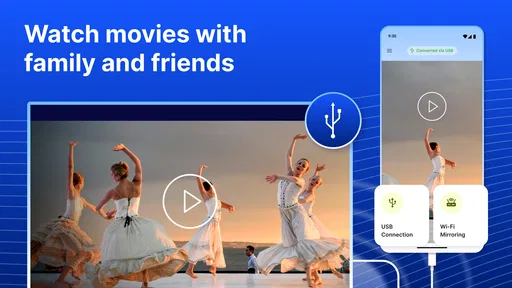
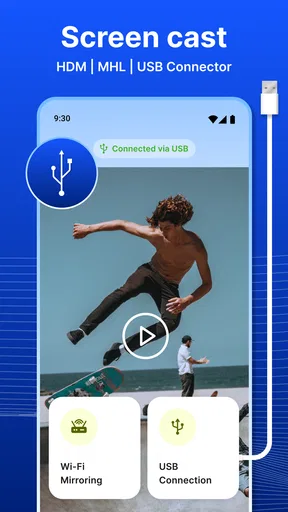
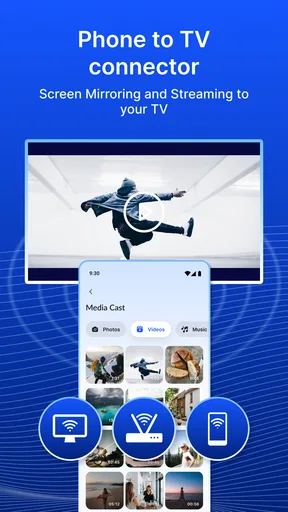
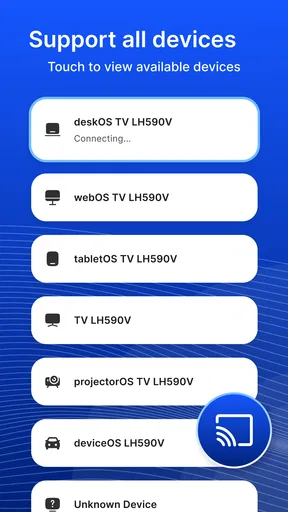
 Analysis by AppCompare
Sharing something from a phone on a television sounds simple until the two devices disagree about how to connect. That gap is where USB Screen Share - Phone to TV aims to help: it focuses on getting a phone’s display onto a larger screen through a wired connection. I see the idea as most useful when a TV is nearby but the usual wireless route is inconvenient, unfamiliar, or unreliable.
When the connection depends on the setup
A cable can feel reassuring because it avoids the usual search for a TV on a shared network, but plugging in is not a guarantee that every phone and television will work together. The app’s description points to USB and HDMI connections, so the practical result depends on the connection path and what the devices support. I would check the phone’s and TV’s available ports and connection options before relying on it for a presentation or a visit.
That distinction matters in a home where streaming devices, routers, and guest networks all compete for attention. If the goal is to show a few photos to someone sitting beside you, a wired approach may be simpler than pairing devices over Wi-Fi. If you want to cast content from across the room without a cable, a built-in casting feature or a dedicated streaming device may be a better fit. I wouldn’t treat one method as universally superior; the right choice depends on the devices already in the room.
A practical fit for everyday phone sharing
I can picture using this kind of screen-sharing app to show a family member a map, browse vacation pictures together, or let a group watch a short clip without passing a phone around. The larger display changes the social experience: people can look up at the same image instead of crowding around a small screen. It can also help when you want to review a document or a webpage with someone, though tiny text may still be difficult to read from a couch.
The most useful habit is to prepare the connection before everyone is waiting. Check that the cable reaches comfortably, open the item you plan to share, and turn the phone so the content is framed the way you want. For a photo album, portrait orientation can suit individual pictures; for video or a wide webpage, landscape often makes better use of the television. These small choices make a casual demo feel less awkward.
Where a wired option differs from casting
Wireless casting is often the obvious alternative, especially when a TV already offers it. It avoids trailing a cable across a room and can be convenient for longer viewing sessions. A USB-oriented setup has a different appeal: it can suit someone who prefers a direct physical connection and does not want to spend time finding a network setting. The trade-off is that you need the right cable and compatible connections, and your phone stays tethered to the television.
For occasional sharing, that compromise may be perfectly reasonable. For a movie night, I would compare the app’s approach with the TV’s native casting tools or a streaming device already connected to it. Those options are designed around sustained playback, while a phone-mirroring workflow is more naturally suited to showing whatever is currently on the handset. If you mainly want to browse photos, demonstrate an app, or share a screen briefly, that difference is worth considering.
Worth Reading Before You Choose

EA SPORTS FC Mobile 26 Is a Bigger Football Game, but It Takes Time

Flipboard Shows What News Apps Must Do Beyond the Feed

Switching to Android Auto Means Rethinking Your Driving Routine

Google Calendar Makes a Crowded Week Easier to Manage

Ludo King Makes the Most of the Minutes Between Plans

Baby Panda World Brings Quick Play to Modern Phones, but Its Game Library Feels Busy
What to do when it does not connect
If the television stays blank, I would work through the simple checks before trying repeatedly: confirm the cable is seated at both ends, choose the relevant input on the TV, and check whether the phone recognizes the connection. A cable that charges a phone is not necessarily the same as a cable that carries display output, so swapping in a suitable cable can be a useful test. Restarting the connection after changing the TV input is also a sensible way to rule out a stale setup.
There is a limit to troubleshooting an app when the problem is really a device capability or adapter mismatch. I would not assume that installing software alone turns every USB port into a video input. If the phone or television does not support the needed display path, the more dependable solution may be the TV’s own casting function or a compatible external adapter. Knowing that before a trip or meeting can save a lot of last-minute frustration.
Keeping the session comfortable and controlled
Screen sharing can reveal more than the intended photo or video: incoming notifications, open tabs, and personal details may appear on the television too. Before connecting, I’d close anything private, silence notifications if appropriate, and bring the content I want to show to the foreground. This is a practical privacy habit rather than a claim about the app’s data handling, and it matters particularly when sharing a screen with coworkers or guests.
A second useful consideration is battery and movement. A wired phone may be easier to keep in place, but the cable can limit where you sit or stand, and long sessions can be less comfortable if the device is awkwardly positioned. I’d set the phone on a stable surface and keep the cable out of walkways. For a quick photo share this is minor; for an extended presentation, a remote-friendly setup or a laptop connected to the TV may be more comfortable.
Plug and Play Simplicity
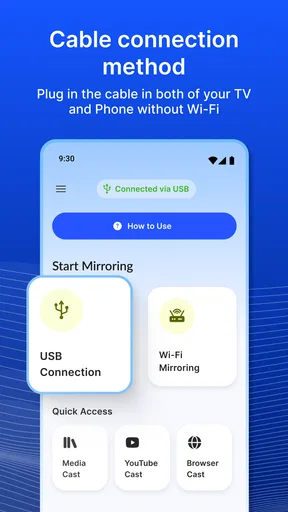
One of the first things that caught my eye about USB Screen Share - Phone to TV is its straightforward setup. You literally connect your phone to the TV using a USB cable, and voilà, you're all set. No need for complex configurations or additional hardware. Just a simple connection and your phone's screen is mirrored on the big screen. It's a breath of fresh air for those like me who aren’t exactly tech-savvy.
Seamless Compatibility
Compatibility is often a concern with apps like this, but rest assured, this one has you covered. Whether you're rocking an Android or iOS device, the app supports a wide range of phones. It even plays nice with most modern TVs. I tested it on my trusty old Samsung and a friend's newer LG model, and it worked flawlessly on both. It’s like magic, but without the wand.
Quality and Performance
Now, let's talk about the real test – performance. Picture quality is top-notch, maintaining crisp resolution without annoying lags. Whether streaming a YouTube video or sharing photos from your last vacation, the transition from phone to TV is smooth. I experienced minimal delay, which is crucial when you’re trying to show off your latest gaming achievements live.
User-Friendly Interface
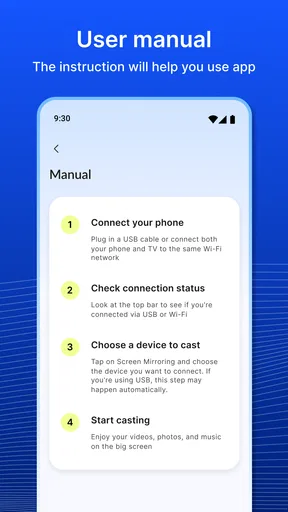
The app interface is another highlight. It’s clean, intuitive, and doesn’t bombard you with ads. Navigating through its features felt natural, and everything is just a tap away. For those who might get lost, there’s a handy step-by-step guide that walks you through the whole process. Trust me, even your tech-resistant grandma could handle this one.
Additional Features
While the main function is screen sharing, the app also includes some nifty extras. For instance, you can control the volume directly from the app, which is a neat touch. There's also an option to switch between portrait and landscape modes, offering flexibility depending on what you're sharing. I found these little bonuses added extra value to the overall experience.
Security Concerns
In today’s world, security is always a concern. Thankfully, USB Screen Share - Phone to TV doesn’t require any unnecessary permissions that might compromise your privacy. It’s nice to know that while you’re sharing your screen, your personal data stays safe and sound.
In conclusion, if you're searching for a hassle-free way to share your phone screen with a TV, this app is a solid choice. Its ease of use, compatibility, and performance make it a must-try. Whether for personal enjoyment or impressing friends during gatherings, USB Screen Share - Phone to TV delivers on its promise. Now go ahead, grab a USB cable, and enjoy the view!
Choosing it for the right kind of session
This is a personalization app from Battery Stats Saver, and its purpose is narrower than a full media player or a home-entertainment hub. I’d consider it when the phone itself is the source of what I want everyone to see: a photo gallery, a page I’m browsing, or a quick demonstration. If the main task is watching a subscription service for a full evening, I’d first try the TV’s own app or a streaming device, since those keep the phone free and are generally a more natural way to watch.
It is also a poor match for situations where nobody can check the connection beforehand. A work presentation that must start on time, for example, calls for a known-good cable and a backup plan rather than confidence based only on an app. I’d test the exact phone, adapter, and television combination once at home, then keep the setup together if I expect to use it again. That small rehearsal is more valuable than assuming that similar-looking ports behave identically.
A realistic living-room workflow
Imagine arriving at a relative’s home with pictures from a recent trip. Instead of passing the phone around, I’d connect it while the TV is on, select the input, and check the first image before inviting everyone to gather. I’d keep the phone within reach so I can move between pictures, but place it somewhere stable where the cable won’t be tugged. If the TV shows the phone’s entire display, I’d also make sure the next swipe will not expose a private conversation or an unrelated app.
For a group, it helps to decide in advance whether the phone is for browsing together or simply acting as a source. In the first case, portrait images and a short sequence are easy to manage. In the second, a prepared album or page reduces fumbling. This is not a hidden app function; it is a way to make screen mirroring feel deliberate rather than turning the gathering into a troubleshooting session.
Compatibility questions worth settling first
People often ask whether a phone-to-TV app works on every handset and television. I would not read broad compatibility language as a promise that every combination will mirror successfully. Ports, adapters, operating-system support, and TV input behavior all matter. The app’s current version is 1.1.6, and it requires Android 5.0 or later, so Android users should check that baseline as well as the physical connection they intend to use.
Another practical question is whether a cable that fits will be enough. Not necessarily: a connector’s shape does not tell you whether it can carry a display signal, and a television’s USB socket may serve a different purpose from an HDMI input. I’d identify the actual signal route before buying an adapter. If the TV offers straightforward casting and the phone can use it, that may be less fussy than assembling a wired chain.
What the cost and audience suggest
The app is free to install, is rated for Everyone, and has optional in-app purchases ranging from $0.99 to $99.99 per item. I would treat that range as a reason to inspect any purchase screen carefully rather than assume every tool needed for basic sharing is included at no cost. The audience rating makes it broadly suitable from a content standpoint, but it does not replace an adult’s judgment about what appears on a mirrored screen.
Its scale is notable: it has over 10 million installs, alongside an average rating of 3.8 from around 76 thousand ratings and about 1.6 thousand written reviews. I take that as evidence that many people have tried it, not as proof that it will fit a particular phone-and-TV combination. For this kind of utility, a short compatibility test on your own equipment matters more than popularity alone.
Final connectivity verdict
My view is that USB Screen Share - Phone to TV is most appealing when I want to put phone content in front of nearby people and can prepare the cable path in advance. It addresses a recognizable inconvenience, and the supplied controls described in the app—such as portrait and landscape switching and volume adjustment—make the mirroring idea more practical than simply connecting and hoping for the best. Still, those conveniences cannot overcome incompatible hardware or turn every TV into a display input.
If you value a direct connection, mainly share short bursts of phone content, and are willing to test your setup once, it is worth considering. If you need guaranteed compatibility, hands-free viewing, or an easy way to stream for hours, use a TV-native service, a proven casting option, or a laptop-and-display setup instead. The app is free to try, but I’d make the decision based on a real connection test—not on the promise of a cable alone.
Pros
- Easy setup for quick connection
- Supports multiple device brands
- High-quality video streaming
- Minimal lag during screen share
- User-friendly interface
Cons
- Requires stable Wi-Fi connection
- May not support older devices
- Limited to certain TV models
- Some features behind a paywall
- Occasional app crashes reported
FAQs for USB Screen Share - Phone to TV
What is USB Screen Share - Phone to TV and how does it work?
USB Screen Share - Phone to TV is an app that allows users to mirror their smartphone screen onto a TV using a USB connection. It works by connecting your phone to the TV via a USB cable, and the app facilitates the display of your phone's content on the larger screen, making it ideal for presentations, gaming, or streaming videos.
Is USB Screen Share compatible with all smartphones and TVs?
The app is compatible with most Android and iOS devices that support USB connectivity. However, compatibility can vary depending on the TV model. It is recommended to check your TV’s manual or the manufacturer’s website to ensure it supports USB input for screen sharing before downloading the app.
Do I need an internet connection to use USB Screen Share - Phone to TV?
No, an internet connection is not required to use USB Screen Share - Phone to TV. The app works through a direct USB connection between your smartphone and the TV. This is particularly beneficial in environments where Wi-Fi is unavailable or unstable.
Are there any security concerns when using USB Screen Share?
USB Screen Share prioritizes user security by establishing a direct connection without internet dependency, reducing exposure to online threats. However, users should ensure their devices are free from malware and only use trusted USB cables to avoid any potential security risks.
What are the main benefits of using USB Screen Share - Phone to TV over wireless options?
Using USB Screen Share provides a stable and reliable connection without lag, which is often an issue with wireless options. It ensures high-quality video and audio transmission, making it ideal for gaming or watching high-definition videos without interruptions. Additionally, it doesn’t require a Wi-Fi network, offering flexibility in various settings.


